SharpLsp in Zed
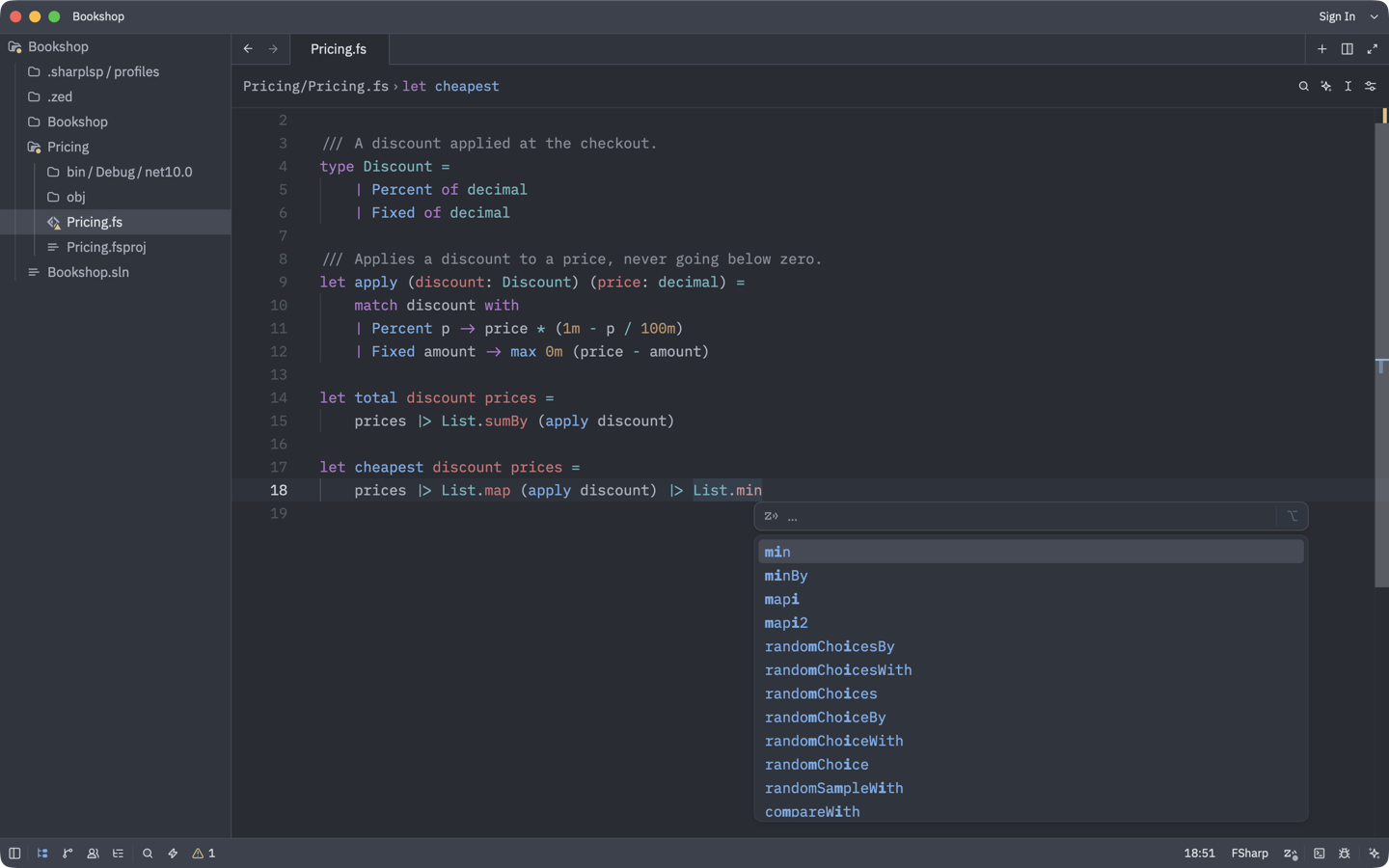
C# and F# code intelligence for Zed.
Install
-
Install the .NET 10 SDK and Rust.
-
In Zed, open the Extensions page and install C# and F#.
-
Clone SharpLsp:
git clone https://github.com/Nimblesite/SharpLsp.git -
On the Extensions page, click Install Dev Extension and select the
src/editors/zedfolder in the clone. -
Open your .NET project folder, and trust it when Zed asks.
-
If the folder contains more than one
.slnor.slnxfile, anywhere inside it, follow Choose the solution below. Otherwise SharpLsp loads no C# projects.
SharpLsp downloads its server the first time you open a C# or F# file.
Choose the solution
For C#, SharpLsp searches the whole folder you opened, including subfolders, for .sln and .slnx files. If it finds exactly one, it loads it. If it finds more than one, it loads none, because it can't tell which one you want. You still get syntax highlighting, which comes from Zed's C# extension, but no hover, completions, go to definition or diagnostics in C# files. F# projects load either way. SharpLsp shows an error, and its language server log says:
Found 11 solutions under '/path/to/folder' (...), so which one to load is ambiguous.To fix it, choose the solution in Zed's settings or in a sharplsp.toml file. If you do both, Zed's setting wins.
In Zed's settings
-
Press Cmd+Shift+P (Ctrl+Shift+P on Linux and Windows) and run
zed: open project settings. -
Add the path of the solution you want, relative to the folder you opened:
{ "lsp": { "sharplsp": { "settings": { "csharp": { "solution_path": "src/MyApp.sln" } } } } } -
Save the file. SharpLsp loads the solution without a restart.
In sharplsp.toml
-
Create a file named
sharplsp.tomlin the folder you opened in Zed. -
Put the path of the solution you want in it, relative to that folder:
[csharp] solution_path = "src/MyApp.sln" -
Press Cmd+Shift+P (Ctrl+Shift+P on Linux and Windows) and run
editor: restart language server.
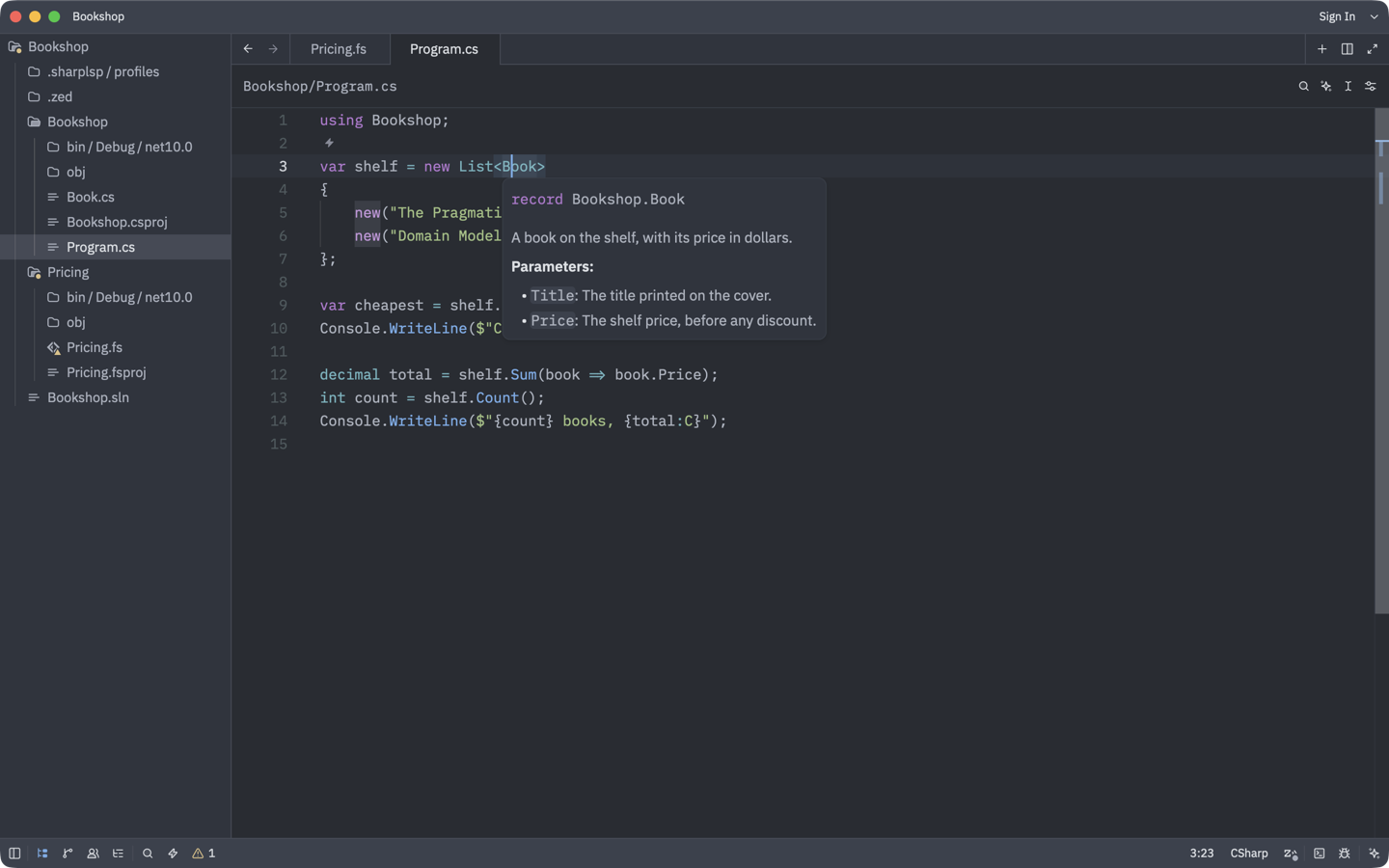
Hover over any type to check that it worked.
Use SharpLsp instead of the other C# and F# servers
Add this to your Zed settings (zed: open settings file):
{
  "languages": {
    "CSharp": { "language_servers": ["sharplsp", "!omnisharp", "!roslyn", "!csharp-ls", "..."] },
    "FSharp": { "language_servers": ["sharplsp", "!fsautocomplete", "..."] }
  }
}
Troubleshooting
| Problem | Fix |
|---|---|
| C# files have syntax highlighting, but no hover, completions or diagnostics | The folder has more than one solution. See Choose the solution. |
| SharpLsp never starts | Install Zed's C# and F# extensions, and trust the folder. |
| Completions or diagnostics appear twice | Another C# or F# server is still running. See Use SharpLsp instead of the other C# and F# servers. |
To see what went wrong, open the command palette (Cmd+Shift+P or Ctrl+Shift+P) and run:
zed: open logfor problems installing or downloading SharpLsp;dev: open language server logs, then choose SharpLsp, for problems once it's running.